
Guide · 3 min read
Create PDF from Images: Page Size, Margins and Layout
By the PNG to PDF team ·
When you create a PDF from images, the tool decides the page size unless you do. By default the page follows the image’s pixel count and resolution, which gives odd page sizes. Setting a fixed paper size, a margin and a fit mode gives a PDF that prints and reads like a document. This guide shows what each choice does, with measurements.
Create PDF from images: default page sizes
Without settings, the page is derived from pixels and a resolution value. In a test on 2026-10-24 with img2pdf 0.6.3, a 600 by 400 pixel image without resolution data gave a 6.25 by 4.17 inch page, which is 96 pixels per inch. Pillow 13.0.0 gave a 17.22 by 24.36 inch page for a 1240 by 1754 pixel image, which is 72 pixels per inch. A 1240 by 1754 pixel PNG saved with 300 dpi metadata gave img2pdf a 4.13 by 5.85 inch page. Pillow’s documentation says its resolution setting, together with the pixel count, determines the physical page size.
Page size, margins and fit for a PDF from images
A fixed paper size makes every page the same. A4 is 210 by 297 mm (about 8.27 by 11.69 inches) and US Letter is 8.5 by 11 inches, according to the paper size reference on Wikipedia; A4 is used in all countries except the United States and Canada. In img2pdf, a layout function places each image on the page:
import img2pdf

a4 = (img2pdf.mm_to_pt(210), img2pdf.mm_to_pt(297))
layout = img2pdf.get_layout_fun(a4)
with open("out.pdf", "wb") as f:
    f.write(img2pdf.convert(["01.jpg", "02.jpg"], layout_fun=layout))
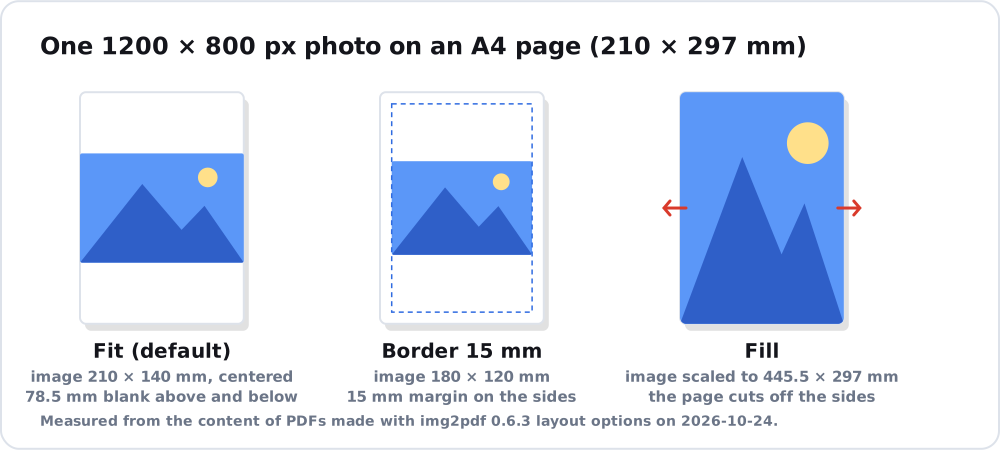
A 1200 by 800 pixel landscape photo on that A4 page came out 210 mm wide and 140 mm high, centered, with 78.5 mm of blank page above and below. Adding border=(img2pdf.mm_to_pt(15), img2pdf.mm_to_pt(15)) shrank it to 180 by 120 mm, leaving a 15 mm margin on the sides. With fit=img2pdf.FitMode.fill the image was scaled to 445.5 by 297 mm, so the page cuts off the sides. With auto_orient=True the landscape photo got a landscape page of 11.69 by 8.27 inches. These values were read from the content of the test files.
Choose fit, fill or a custom page
Fit shows the whole image and leaves blank bands. Fill covers the page and loses the edges. A custom page the size of the image has no bands but is not a standard paper size. Choose A4 or Letter when the PDF will be printed or filed, and the image’s own size when it is only read on a screen. How many pixels a page needs is a separate question: an A4 page at 300 pixels per inch needs about 2480 by 3508 pixels, and 150 pixels per inch needs about 1240 by 1754.
Page setup in other tools
Print dialogs choose a paper size and margins for you, with the options that the dialog shows; the Chrome, Word and Google Docs routes are in convert PNG to PDF. To put many images into one file with a consistent page, see combine images into PDF. Each image format reaches the page differently, which image to PDF tabulates, and the full script for a folder of JPG files is in convert JPG to PDF with a tool.
FAQ
What page size should I use to create a PDF from images?
A4 for readers who print on A4 and US Letter for readers who print on Letter. For screen-only use, the image’s own size avoids blank bands.
Why is there blank space around my image in the PDF?
The image and the page have different shapes, so a fitted image leaves bands on two sides. Use a custom page, a different fit mode or a smaller margin.
How do I add margins around an image in a PDF?
In img2pdf, use the border setting of the layout function. In print dialogs, use the margins control if your dialog offers one.